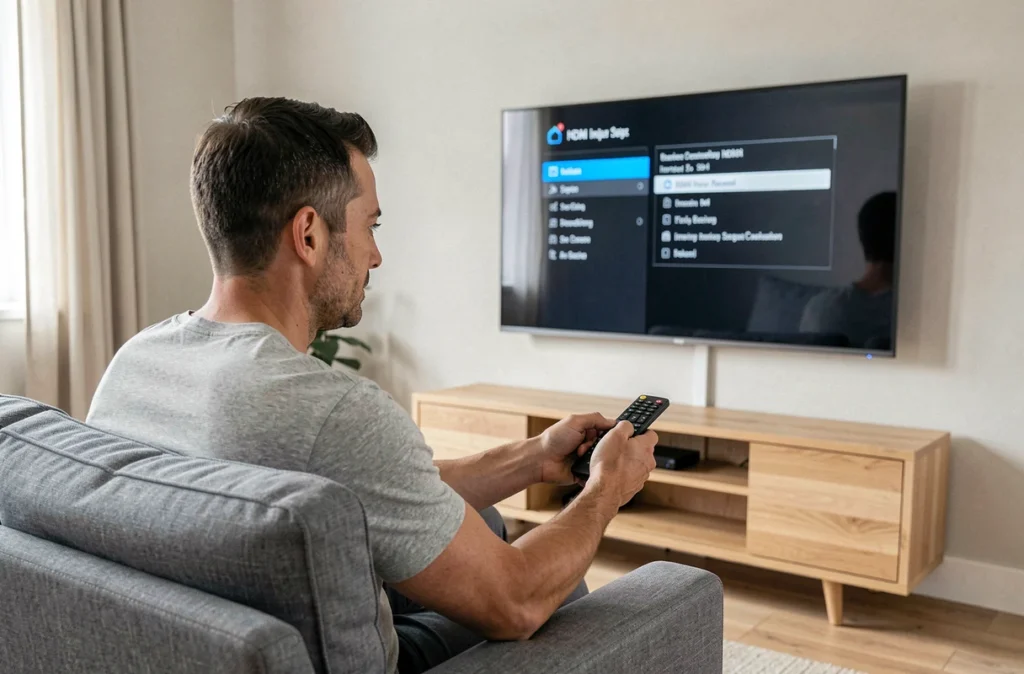
TCL televisions running Google TV or Android TV always start on the platform’s home screen. For users who connect a set-top box, console, or box to an HDMI port, this mandatory passage through the Google TV menu adds unnecessary handling every time they turn on the TV. The problem is even more annoying since some TCL models previously switched automatically to the HDMI input before a firmware update removed this behavior.
Why TCL Google TVs no longer start on HDMI
Recent Google TV firmwares no longer offer a native option to choose an HDMI source as the startup screen. Google prioritizes its home interface, which highlights content recommendations and built-in applications. The manufacturer TCL, like other manufacturers using this platform, does not have control over this software architecture choice.
Several users on specialized forums report that their TCL Android TVs offered this option just a few months ago, but the setting disappeared after an update. Feedback varies on this point: some TCL Roku TV models retain direct access via the input tile, while Google TV versions seem locked.
However, there are several methods to work around this limitation. The first approach involves using the HDMI-CEC protocol, already present in almost all TCL televisions. The second relies on third-party applications that have recently emerged, designed to turn on the TCL TV directly to HDMI without going through the Google TV home screen.
HDMI-CEC on TCL TV: the setting to check first
The CEC (Consumer Electronics Control) protocol allows HDMI-connected devices to communicate with each other. On a TCL television, this function is called T-Link in the menus. When enabled, the television can detect that a device connected to an HDMI port is turning on and automatically switch to that input.
The reverse operation is also possible: turning on the TCL television with the remote can send a startup signal to the connected set-top box or console. This mechanism does not guarantee a direct startup on HDMI every time the television is turned on, but it reduces handling in most cases.
Activating T-Link on a TCL television
- Access the television settings, then go to the “System” or “External Inputs” section depending on the firmware version.
- Look for the HDMI-CEC or T-Link option and enable it. On some models, a submenu offers “Automatic Power On” and “Automatic Source Change”: enable both.
- Ensure that CEC is also enabled on the device connected via HDMI (set-top box, box, console). Each manufacturer uses a different name: Anynet+ for Samsung, SimpLink for LG, Bravia Sync for Sony.
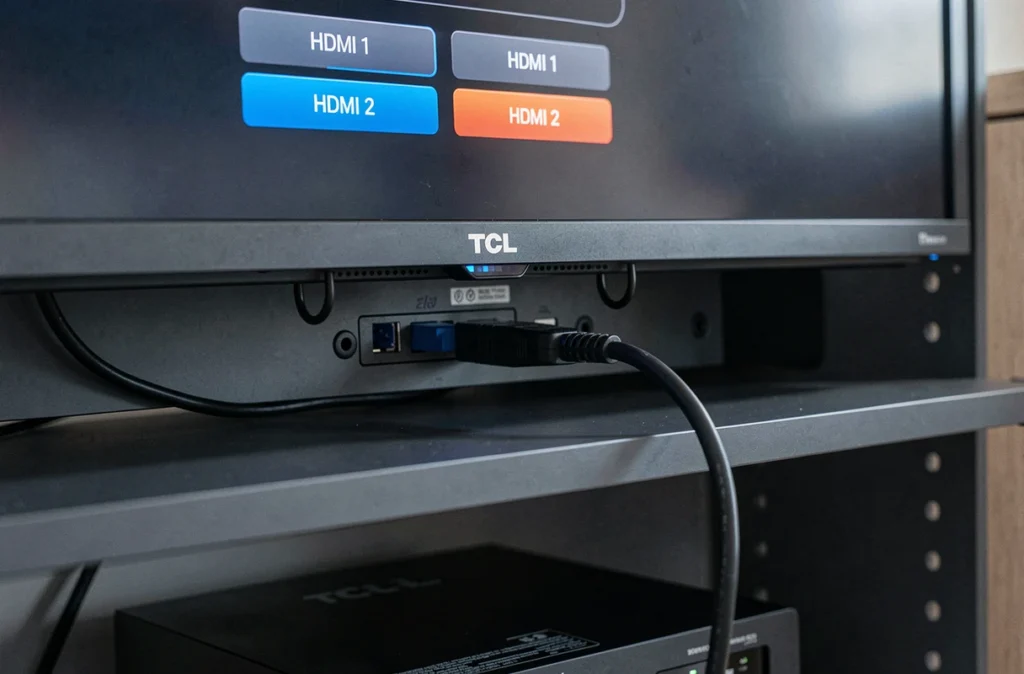
- Preferably connect the device to HDMI port 1, as some TCL televisions prioritize this port for CEC.
A common pitfall: the HDMI cable must support CEC. Very old or low-quality cables do not always transmit control signals. If automatic switching does not work after activation, replacing the cable often resolves the issue.
Third-party applications to force startup on HDMI
When CEC is not enough (incompatible source device, TCL firmware ignoring the signal), specialized applications take over. The AutoHDMI (Auto Switch to HDMI) application, which appeared on stores in 2024-2025, was designed for Android TV and Google TV devices. It automatically forces the switch to a chosen HDMI input after a complete restart or power cut.
The principle is simple: the application launches when the television starts up, detects that the system is on the Google TV home screen, and then executes a command to change the source to the HDMI port defined by the user. The process takes a few seconds, during which the home screen briefly appears before switching.
Alternative launcher method on TCL TV
Another approach is to replace the default Google TV launcher. Solutions like Productivity Launcher allow you to display all available sources and set an HDMI input as the startup source. You configure this launcher as the default home screen, then grant it permission to launch the desired HDMI source at boot.
This method alters the user experience more than the AutoHDMI application. The classic Google TV interface disappears in favor of a simplified screen. For exclusive use with a set-top box or external box, this is an advantage. For those who also use the television’s built-in applications (Netflix, YouTube), the compromise is less obvious.
CEC conflicts and unexpected power-ons: limitations to know
The CEC protocol, despite its usefulness, generates erratic behaviors on some installations. The most common case: the TCL television turns on by itself in the middle of the night because a connected device (internet box, console in standby) sends an unintentional CEC signal.
This problem is documented on several forums. It particularly affects configurations with multiple HDMI devices connected simultaneously. Each device can send wake-up CEC commands, and the television does not always distinguish between an intentional signal and a stray signal.
To limit these conflicts, the most reliable solution is to enable CEC only on the HDMI port used by the main device, if the TCL firmware allows it. Some recent models offer a CEC setting per port. On older models, it may be necessary to disable CEC on secondary devices directly in their own menus.
Third-party applications like AutoHDMI are also not without limitations. They depend on the permissions granted by Android TV, and a system update can change these permissions without notice. The application works correctly on the majority of TCL Google TVs tested by the community, but the available data does not guarantee compatibility with all models.
Between native CEC, automatic switching applications, and alternative launchers, the suitable method depends on the TCL model, the type of device connected, and the level of modification acceptable. CEC remains the first setting to test. If the result is not reliable, AutoHDMI offers an additional layer of automation without altering the television’s interface. The alternative launcher, on the other hand, is suitable for configurations where the television serves exclusively as a screen for an external device.