The FreeWiFi Secure community service, based on EAP-SIM authentication, has been gradually phased out since 2025. Disabling Free Wifi Secure on your device or Freebox remains a relevant step to avoid residual automatic connections and regain control over the security of your home network.
EAP-SIM Protocol and Residual Connections After the FreeWifi Secure Service Shutdown
The EAP-SIM authentication used by FreeWifi Secure relied on the IMSI identity of the Free SIM card to establish the connection without a username or password. The device automatically connected to a detected SSID “FreeWifi_secure” without user intervention.
Since the community service was shut down in 2025, some smartphones retain the network profile in memory. The Wi-Fi then switches to an access point that no longer responds, causing micro-disconnections or degraded access. We observe this behavior on both Android and iOS, especially when the network was manually saved during the first connection.
The technical solution is to delete the stored network profile. On Android, go to Wi-Fi settings, long-press “FreeWifi_secure,” and select “Forget network.” On iOS, the path goes through Settings, Wi-Fi, then the information icon next to the network, before tapping “Forget this network.” An additional procedure allows you to disable free wifi secure on Klottra by following the specific steps for each operating system.
Deleting the network profile prevents any automatic reconnection and forces the device to use 4G/5G or your home Wi-Fi.
Disable the FreeWifi Hotspot from the Freebox Interface
On the box side, the FreeWifi SSID (and FreeWifi Secure when it was active) is broadcast by default. Even after the community service shutdown, some Freeboxes continue to emit the signal. Turning off this hotspot frees up a radio channel and reduces the exposure surface of your network.
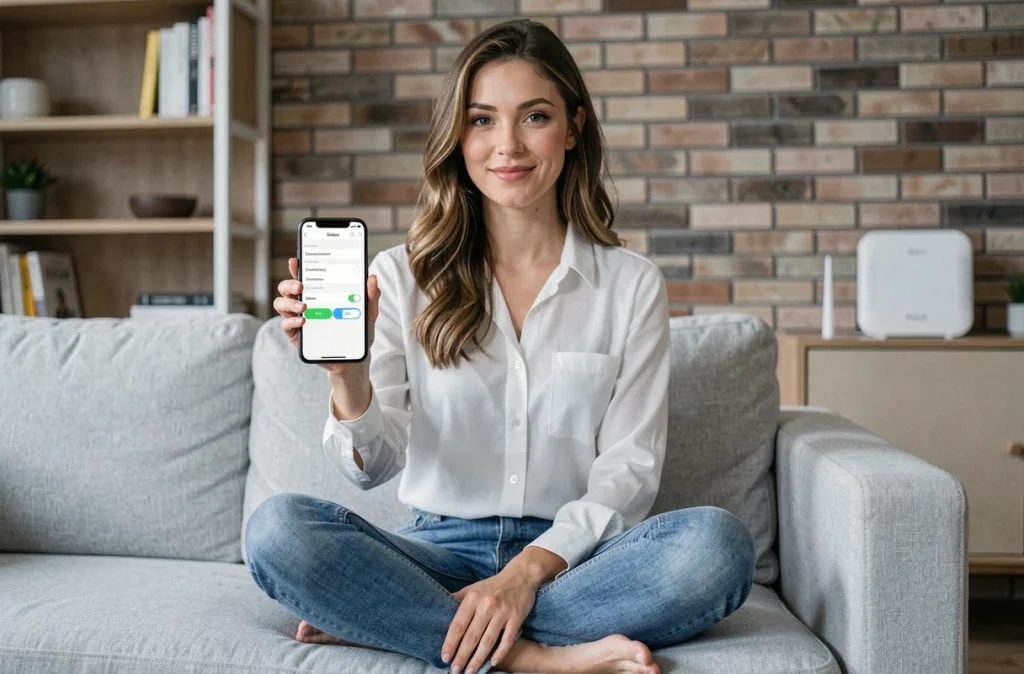
The historical method goes through wifi.free.fr. Connect from a device linked to your Freebox, enter the code displayed on the box screen, then click “Disable Free Wifi Hotspot.” The operation takes effect immediately.
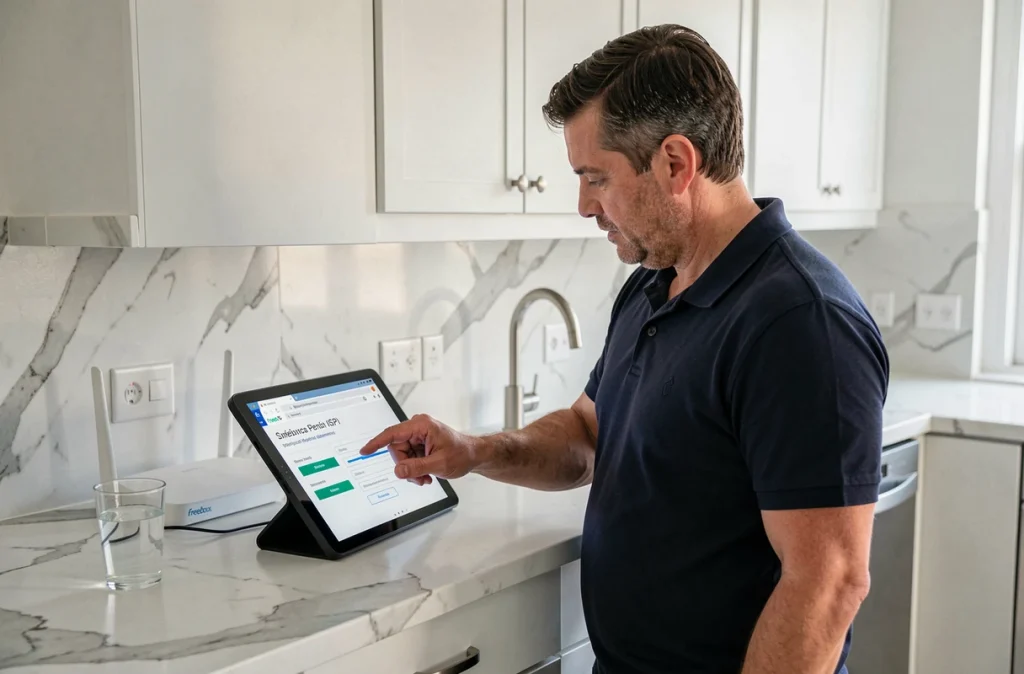
On recent Freeboxes (Delta, Pop, Ultra), the Freebox OS interface accessible via mafreebox.freebox.fr offers finer control. In the Wi-Fi menu, you can individually disable each broadcasted SSID, including the guest network.
- Freebox Révolution: deactivation only via wifi.free.fr, no option in Freebox OS for the community SSID
- Freebox Delta, Pop, Ultra: full management of SSIDs in Freebox OS, Wi-Fi Settings section
- Freebox Mini 4K: same procedure as the Révolution, with a code displayed on the Server box
Your personal connection always takes priority over FreeWifi traffic. The community bandwidth was limited to about 1 Mbit/s. Disabling the hotspot does not radically improve your bandwidth but removes an unnecessary access point on your local network.
Switch to WPA3 Encryption on Freebox to Secure Your Wi-Fi Connection
WPA3 is the encryption standard to prioritize on any compatible Freebox. The Delta, Pop, and Ultra models offer pure WPA3 or a mixed WPA2/WPA3 mode in the Freebox OS Wi-Fi settings.
WPA3 enhances resistance to dictionary attacks through the SAE (Simultaneous Authentication of Equals) protocol, which replaces the WPA2 PSK handshake. Each connection session generates a unique key, making passive interception useless.
We recommend WPA3 alone if all your devices support it. In practice, some older connected devices (cameras, bulbs, printers) only manage WPA2. The mixed WPA2/WPA3 mode then serves as a compromise: compatible devices benefit from WPA3, while others fall back to WPA2 without losing connection.
To enable WPA3, go to Freebox OS, Settings section, then Wi-Fi. Select the encryption type from the dropdown menu. After validation, all connected devices will be disconnected and will need to reauthenticate with the network password.
Additional Settings to Lock Down the Freebox Network
Disabling FreeWifi and switching to WPA3 covers the two main risks. A few additional adjustments deserve attention.
Changing the default Wi-Fi password remains the most underestimated measure. The factory password, often printed under the box, circulates in the immediate environment. A password of at least 12 characters, unrelated to the network name, complicates any brute force attempt.
- Renaming the SSID to avoid displaying the box model (avoid “Freebox-ABC123”) limits fingerprinting
- Disabling WPS (Wi-Fi Protected Setup) removes a known attack vector on consumer boxes
- Creating a dedicated guest network for connected objects isolates IoT traffic from your main devices
- Enabling MAC filtering in addition (not as a replacement) to encryption adds a layer of access control
MAC filtering alone does not provide reliable protection, as a MAC address can be spoofed in seconds. Combined with WPA3 and a strong password, it complicates the task for an opportunistic attacker.
On Freeboxes equipped with an integrated firewall (Delta, Ultra), enabling the IPv6 firewall blocks unsolicited incoming connections to your devices. This setting, disabled by default on some firmwares, can be found in Freebox OS, Freebox Settings section, then Firewall.
The combination of these measures transforms a Freebox configured by default into an access point whose attack surface is reduced to the strict minimum. The FreeWifi community network now belongs to the past, but the configuration habits it imposed persist on many still-active boxes.