You have just connected your Freebox Pop, the player displays the Google TV home screen, and the voice remote is waiting for your commands. Before issuing any “Ok Google” commands, a quick check of the network and the Google Home app on your phone can prevent most of the pairing issues encountered. Let’s review what works, what has changed recently, and the settings that save time on a daily basis.
End of Google Assistant on mobile: what it means for the Freebox Pop
As of September 4, 2026, Google is gradually disabling Google Assistant on smartphones, Android tablets, Wear OS watches, and Android Auto. The replacement is called Gemini. This switch directly changes how you control your Freebox Pop from a phone.
The key point to remember: the Freebox Pop player, based on Google TV, retains Google Assistant. The voice remote provided with the player continues to function normally with “Ok Google”. Google Home speakers and connected displays also remain on the old assistant, for now.
However, if you were used to saying “Ok Google, put TF1 on the Freebox” from your Android smartphone, this command now goes through Gemini. Feedback varies on this point: some users find that Gemini handles the relay to Google TV devices correctly, while others report failures with specific box commands. To maintain reliable control, it is recommended to use the player’s remote or the Google Home app rather than the phone’s voice command.
A detailed guide explains how to set up my Freebox Pop device with Ok Google considering these recent developments.
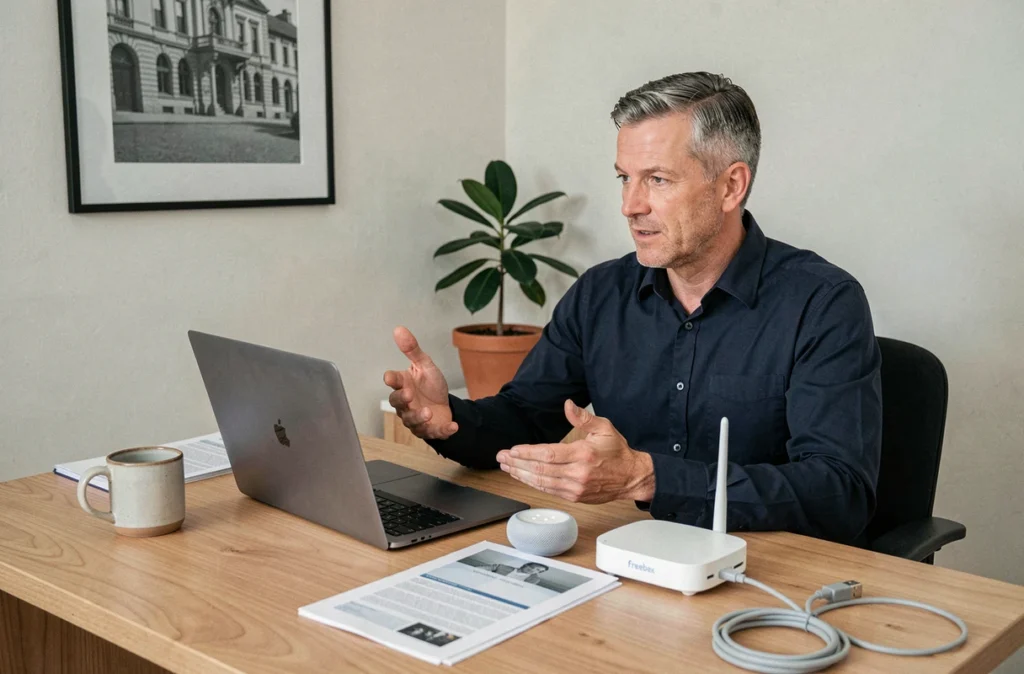
Google Home and Freebox Pop pairing: the sequence that avoids errors
The majority of configuration problems stem from a mismatch between the Google account used on the phone and the one active on the player. Before touching anything, we check three elements.
- Same Wi-Fi network on the phone and the Freebox Pop player. If your Freebox broadcasts two bands (2.4 GHz and 5 GHz), place both devices on the same band, preferably the 5 GHz for stability
- The Google Home app installed and up to date on the smartphone or tablet, with the Google account that is also used on the player
- The Freebox Pop player powered on and connected to the internet, not just in standby. Restarting the player before pairing resolves most cases where Google Home does not detect the device
Once these prerequisites are confirmed, open Google Home, tap the “+” to add a device, then select the Freebox Pop player that appears in the list of available devices on the local network. The app assigns the player to a room in the house (living room, bedroom), which then allows for targeted voice commands.
When the player does not appear in Google Home
If the player remains invisible, start by checking that Bluetooth is active on the phone. Google Home uses Bluetooth for initial detection, even though the final connection goes through Wi-Fi. Another often overlooked point: location permissions must be enabled for the Google Home app on Android. Without them, device detection on the local network fails silently.
Useful voice commands on the Freebox Pop player
Once pairing is complete, the microphone button on the Freebox Pop remote triggers the assistant directly on the player. No need to say “Ok Google”: a press of the button is enough, then you speak.
The most reliable commands concern navigation through content. “Launch Netflix”, “Play YouTube”, “Search for action movies” work smoothly on Google TV. For controlling live TV via Free, wording matters: “Put on channel 1” works better than “Put TF1” according to user feedback, because the assistant identifies a channel number more easily than a brand name.
Volume control (“Turn up the sound”, “Lower the volume”) and pausing (“Pause”, “Resume playback”) go directly through the player. For finer adjustments (subtitles, audio language), you still need to use the physical remote or the menus of the relevant app.
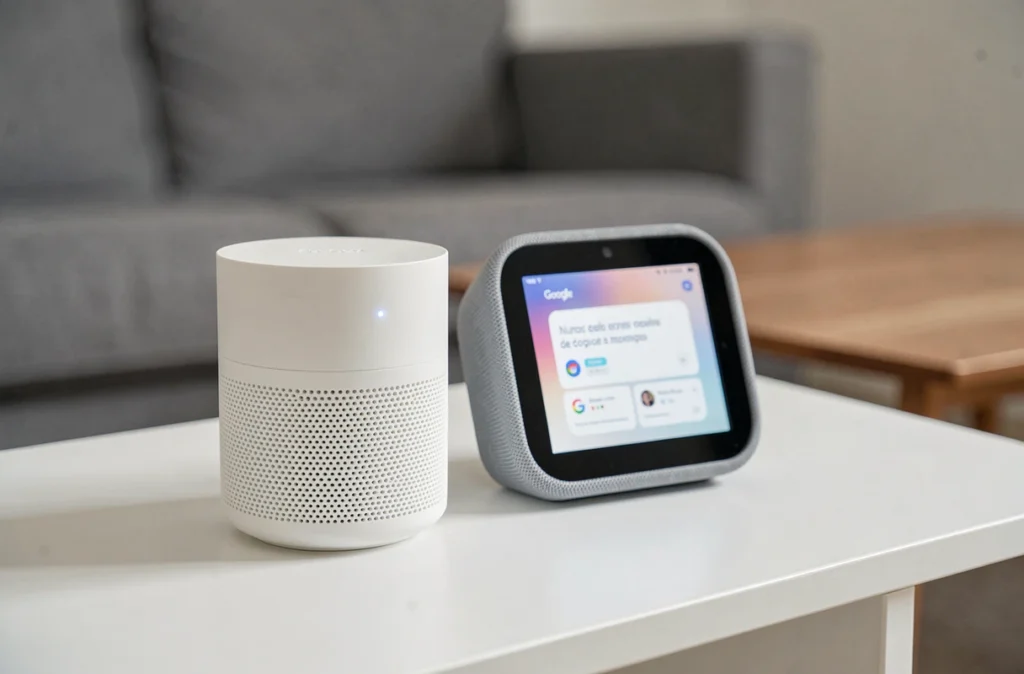
Voice routines and automations via Google Home
Google Home allows you to create routines that chain multiple actions from a single phrase. For example, saying “Ok Google, movie night” can simultaneously turn on the Freebox Pop player, dim the connected lights, and adjust the volume.
To set up a routine, go through the Google Home app, Automation section. Choose a voice trigger (the custom phrase), then add the actions in the desired order. The Freebox Pop player appears in the list of compatible devices as long as it is properly linked to the same Google account.
- Action “Play media”: allows you to launch a specific app or content on the player
- Action “Set volume”: sets the player’s volume to a defined level
- Action “Control a device”: turns the player on or off, useful for morning or bedtime routines
Current limitations of routines with the Freebox
Routines cannot yet change Free TV channels directly. You can launch the player and open the Free TV app, but switching to a specific channel requires a separate voice command or the remote. This limitation comes from the integration between the Free app and Google TV, not from the assistant itself.
The voice configuration of the Freebox Pop remains stable as long as you rely on the player and Google Home rather than the smartphone’s voice command, which is now managed by Gemini. For subscribers who also use connected devices (bulbs, plugs, thermostats), the Freebox Pop player becomes the central voice hub of the home, provided everything is linked to the same Google account and the same Wi-Fi network.